1. Getting
Started
Sign In
To access full features, sign in using Email/Password or
Google. This ensures
data is saved
securely.
The
Dashboard
Your central hub to view active/past tournaments, search
events, or create
new ones.
2. Creating a
Tournament
Click "New Tournament" on the
dashboard.
Settings
- Categories: Enable classes and set car limits.
- Rules: Configure Second Chance entry and track layout
(3/5 Lanes).
- Timer: Enable match countdowns.
3. Managing
Players
Manual
Entry
Add players one by one, specifying their car count
for each category.
CSV Import
Import lists using columns:
Player Name,
Number of Cars,
Race Category.
Your CSV file should have three columns with a
header row like this.
The "Race Category" must match one of the enabled categories
exactly.
Player Name,Number of Cars,Race Category
Alex Johnson,2,box stock
Sarah Miller,3,open class
Tom Wilson,1,pro stock
Note: Categories
must match exactly.
4. Running the
Tournament
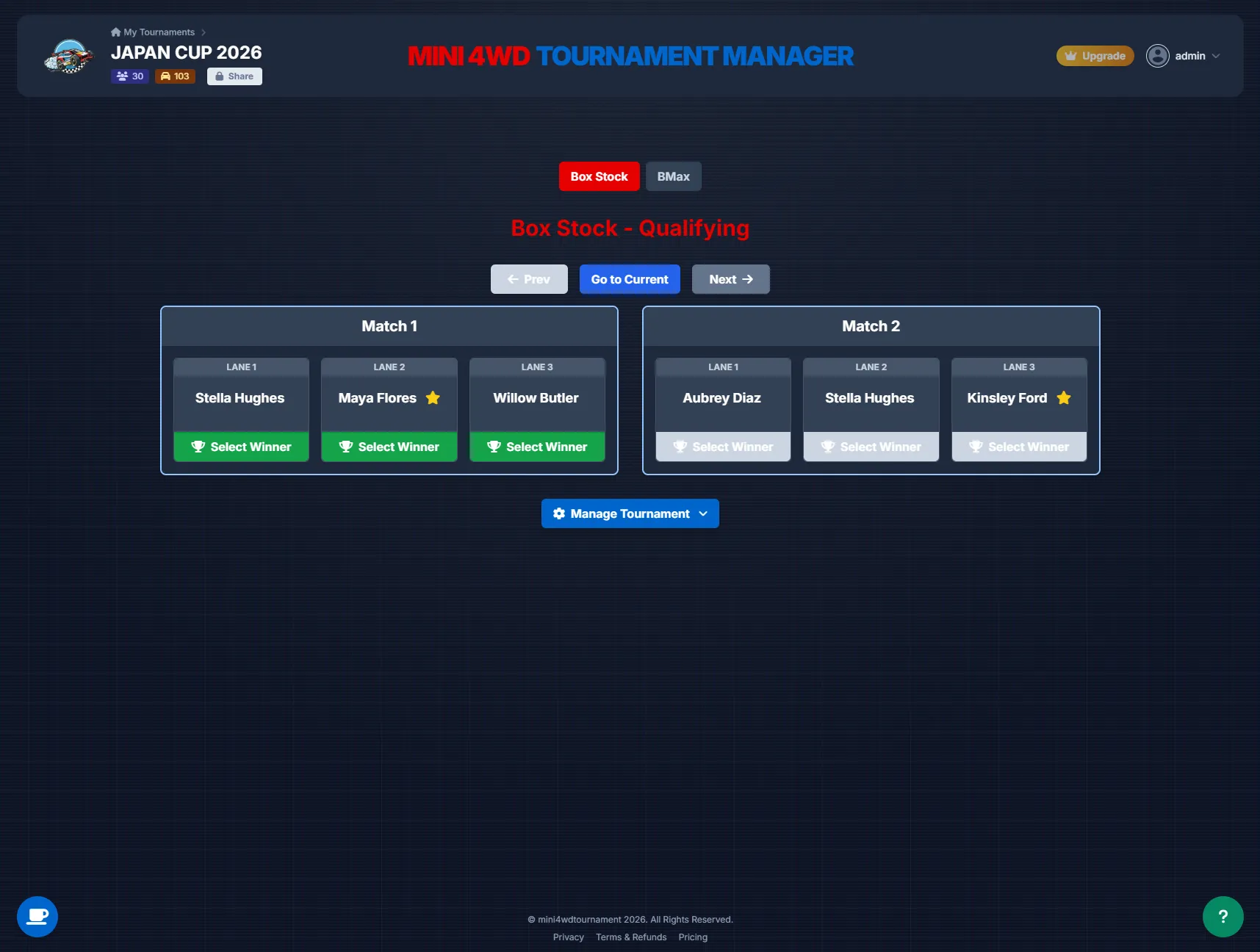
- Bracket View: Scroll through rounds to see matchups.
- Conducting Races: Click a match card to open the race
view. Use the timer
and select a
winner.
- Second Chance: If enabled, losing players enter a
redemption bracket.
5.
Troubleshooting & Tips
- CSV Fails? Check headers and category spelling.
- Data Sync: Ensure internet connection is active.
- Found a bug? Contact admin@mini4wdtournament.com
1. My Garage
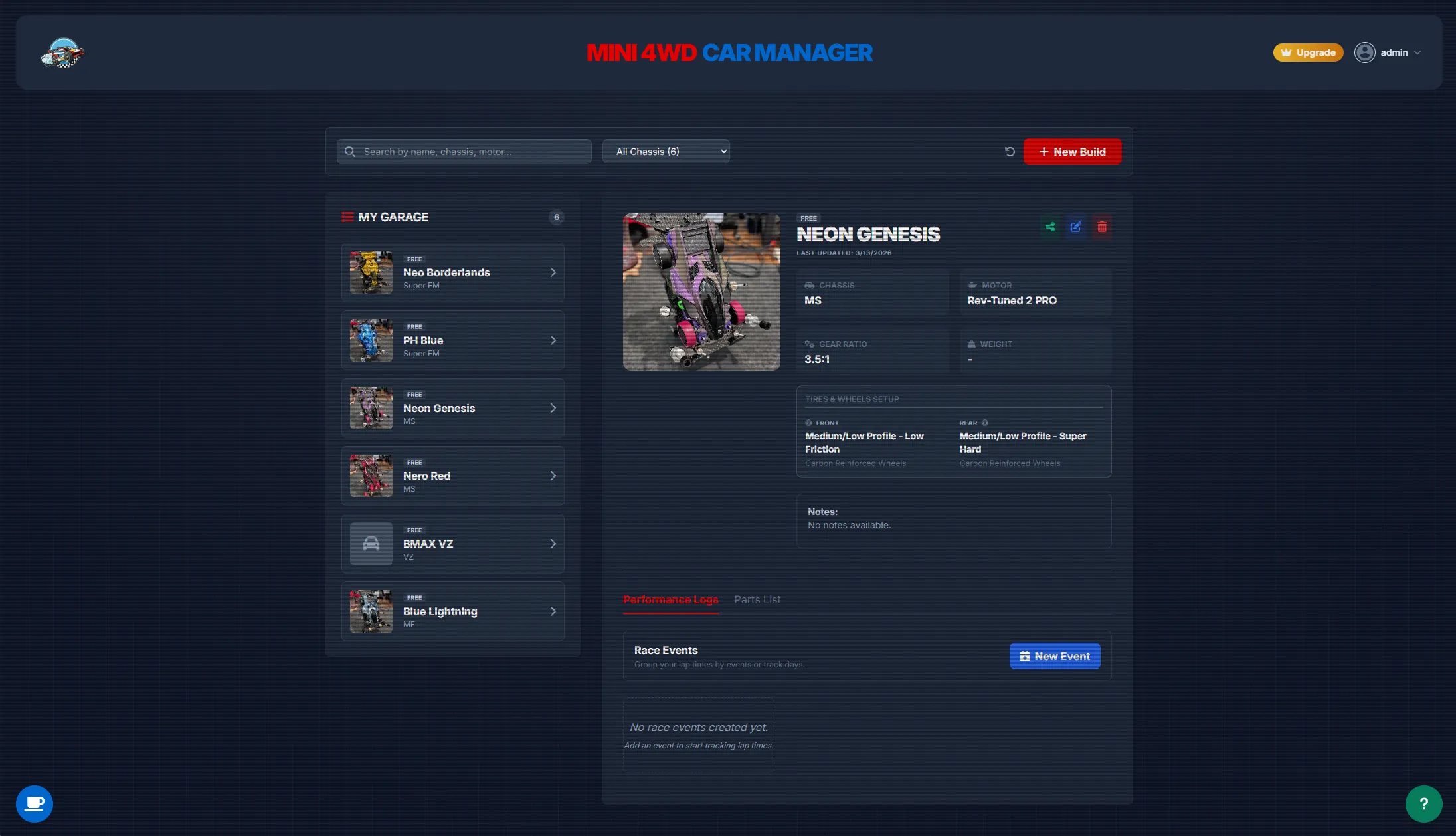
The garage is your central database for all your Mini 4WD machines.
Adding Cars
Click "New Build" to create a profile. Record chassis type, motor,
gear ratio, and tires.
Photos
Upload photos of your car. Click the photo to view it full-screen.
2. Performance Logs
Track how your car performs on the track using the new Live
Timer feature.
- Race Events: Create an event (e.g., "Main Store Race") to group your
runs.
- Live Timer: Click "Track Run" to open the timer. Use the
Start, Lap, and Stop buttons to
record precise times.
- Result & Notes: Finalize each run by selecting a result
(Win/Loss/DNF/Practice) and adding setup notes like motor and batteries used.
3. Parts Management
Keep track of exactly what parts are installed on each machine using the
integrated Tamiya database.
Inline Search
Quickly add or remove parts directly from the Parts
Tab in the machine details view. No need to open the full edit menu.
Tamiya Database
Search by name or 5-digit item number. The system uses a fast local
cache to find parts instantly as you type.